Personal preview
Explore a color before dyeing
Compare broad color directions such as blonde, auburn or dark brown before deciding what to discuss with a stylist.
Upload a portrait and choose a shade. The Recolor Agent asks the editor to change hair color only, then lets you inspect the face, skin tone, hair texture and background.
Or try with an example photo:
Choose a JPG, PNG, WebP or AVIF portrait where the hair is visible. Images with clear lighting and separation from the background are easier to review.
Pick a preset or describe another color. The request changes hair color only and does not ask for a haircut, added hair or a different texture.
Compare the result with the original. Check loose strands, the hairline, eyebrows, face, skin tone and nearby clothing before downloading.
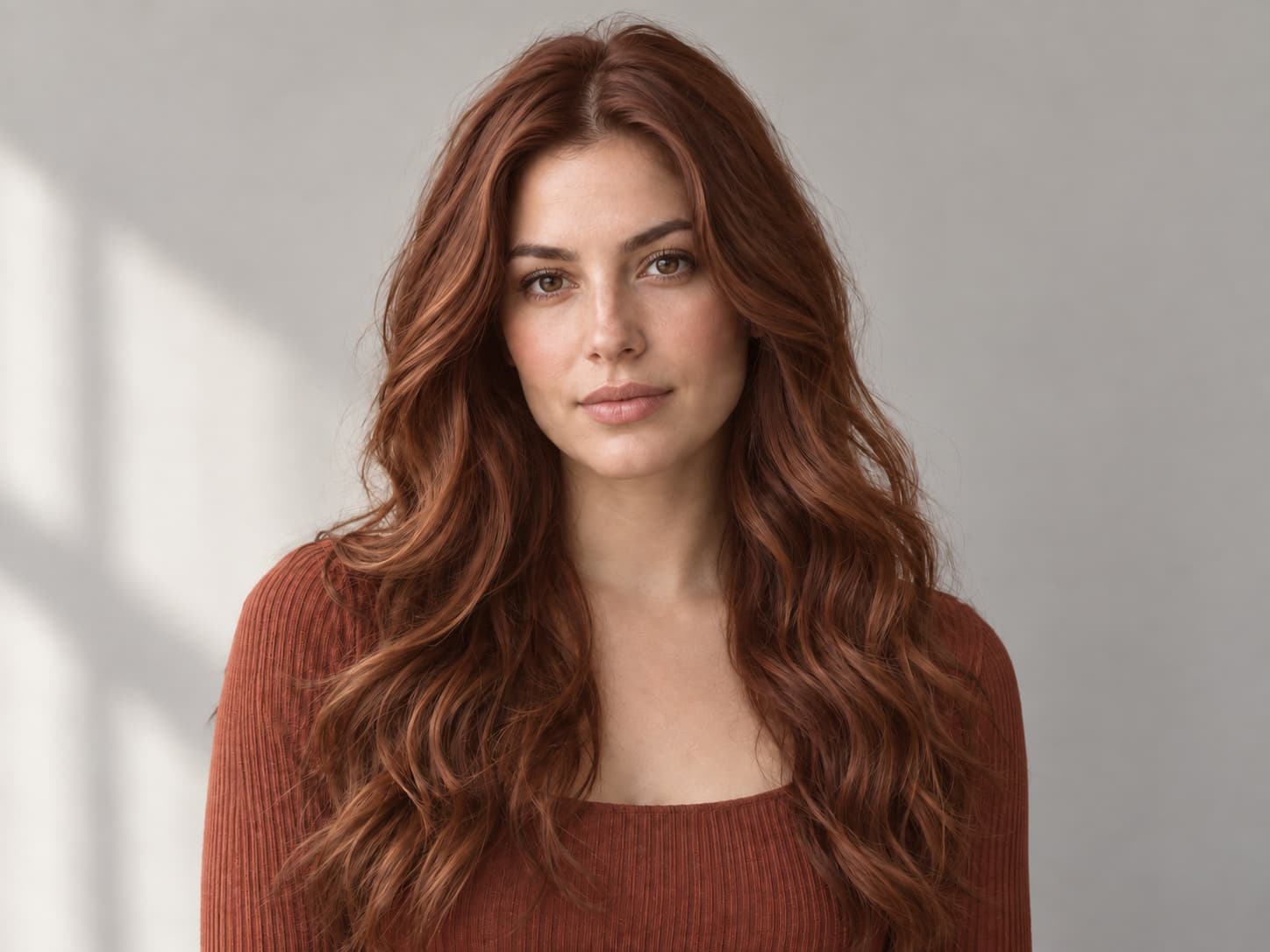
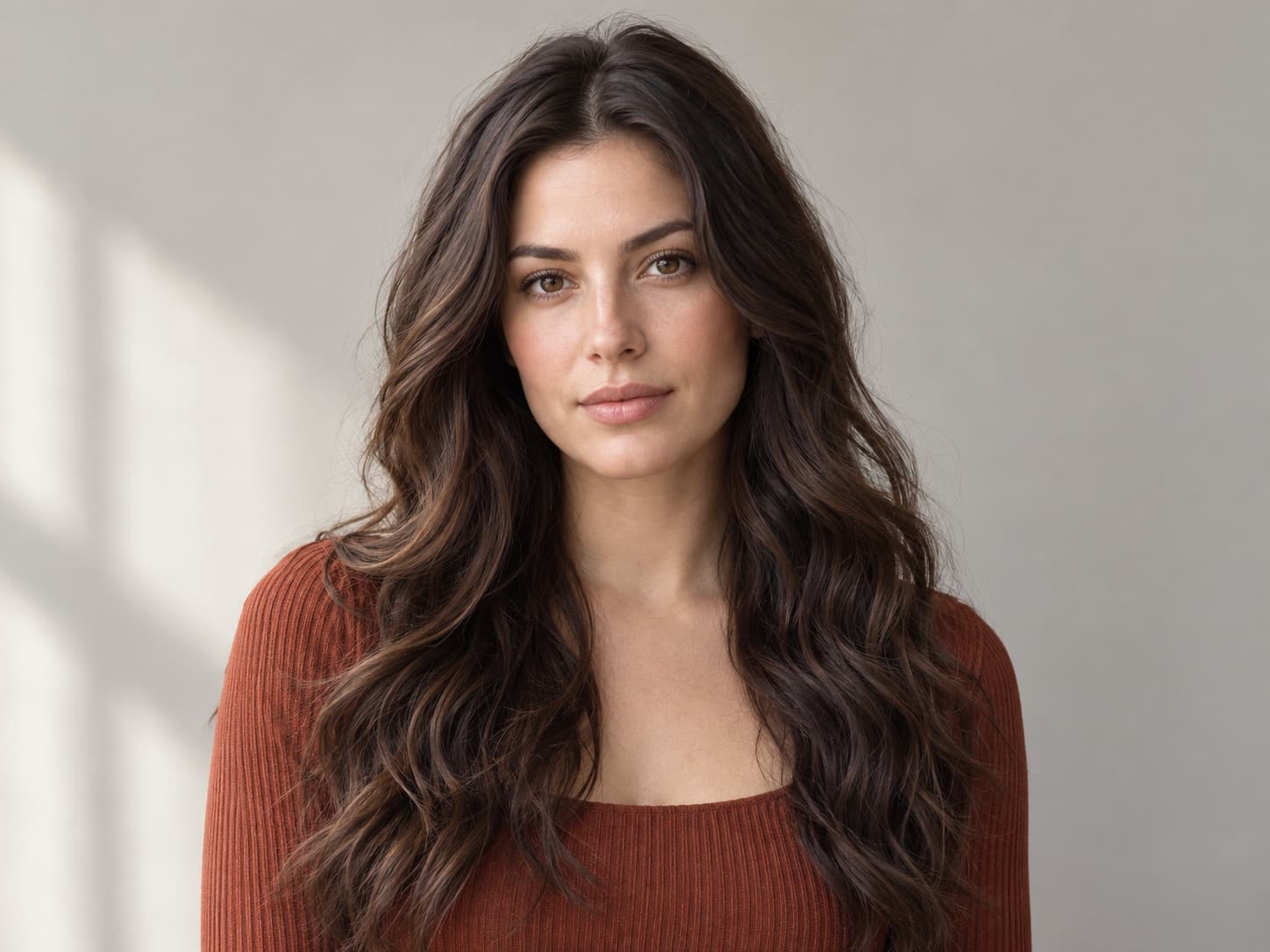
Compare the warm auburn edit with the original dark brown hair, especially around the hairline, loose strands and natural highlights.
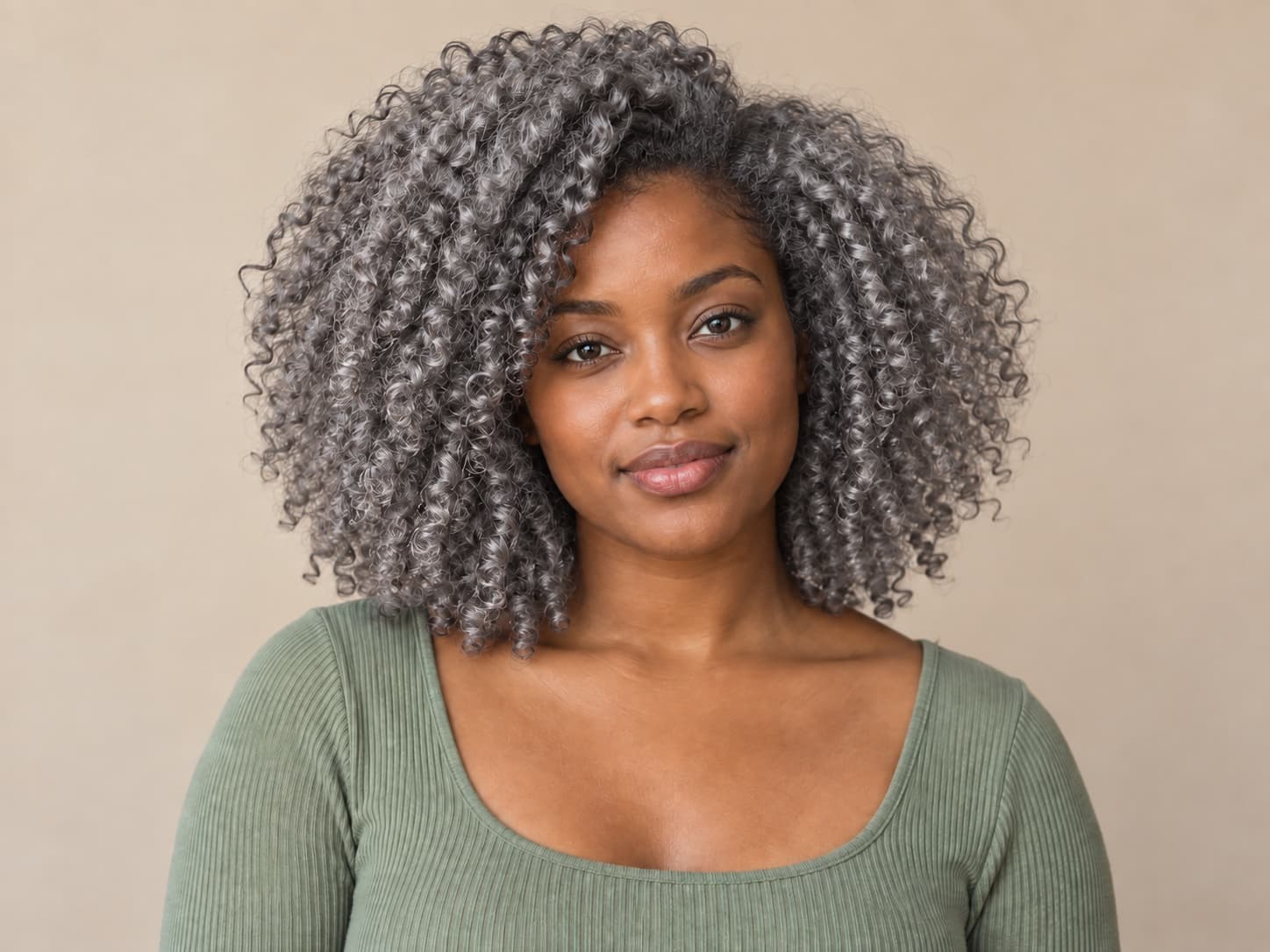
Dense curls make a useful edge case: compare the curl pattern, roots, face and nearby background before using the result.
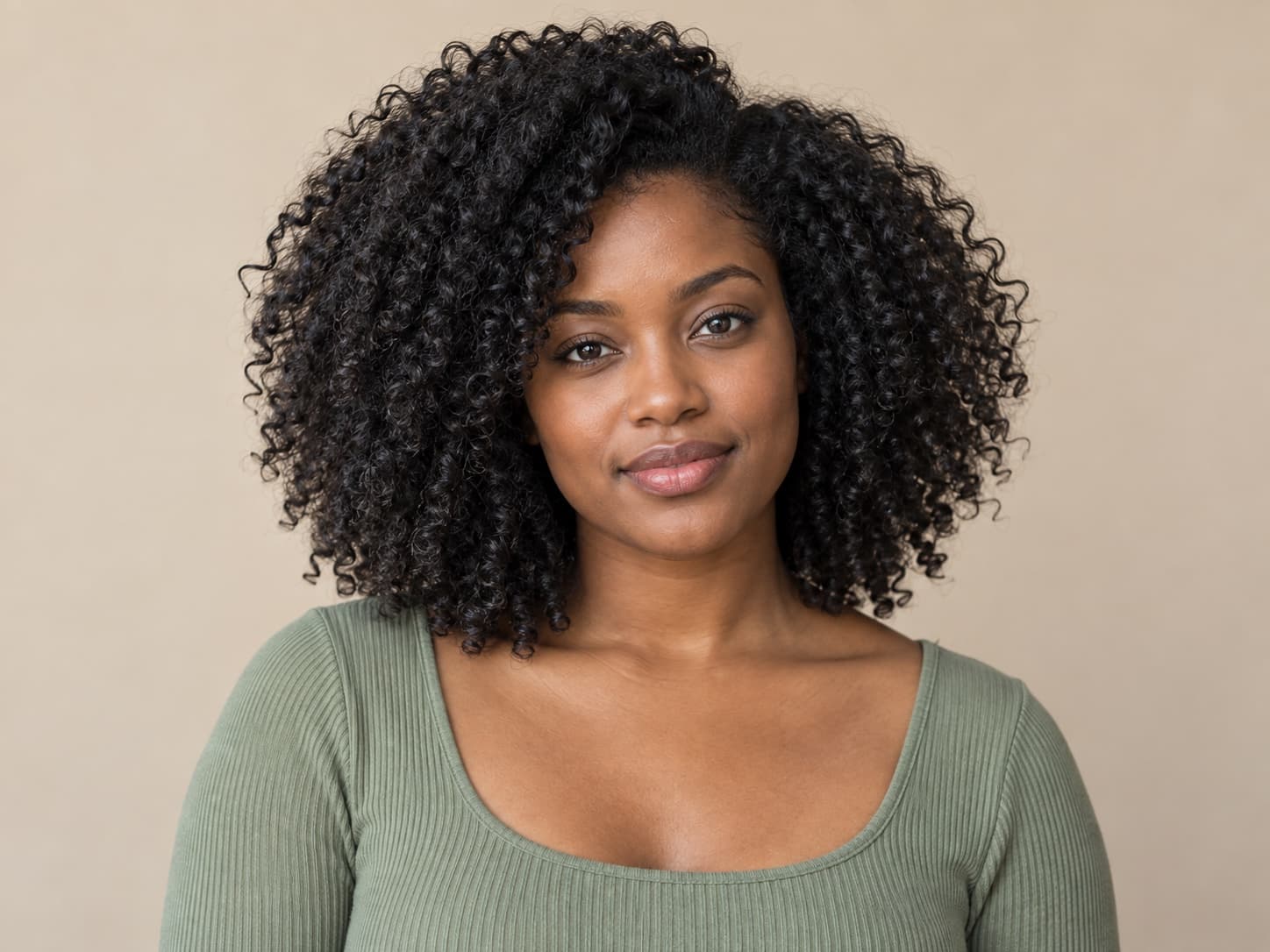
The request changes the visible hair color while asking the editor to retain the original length, shape, pose and lighting.
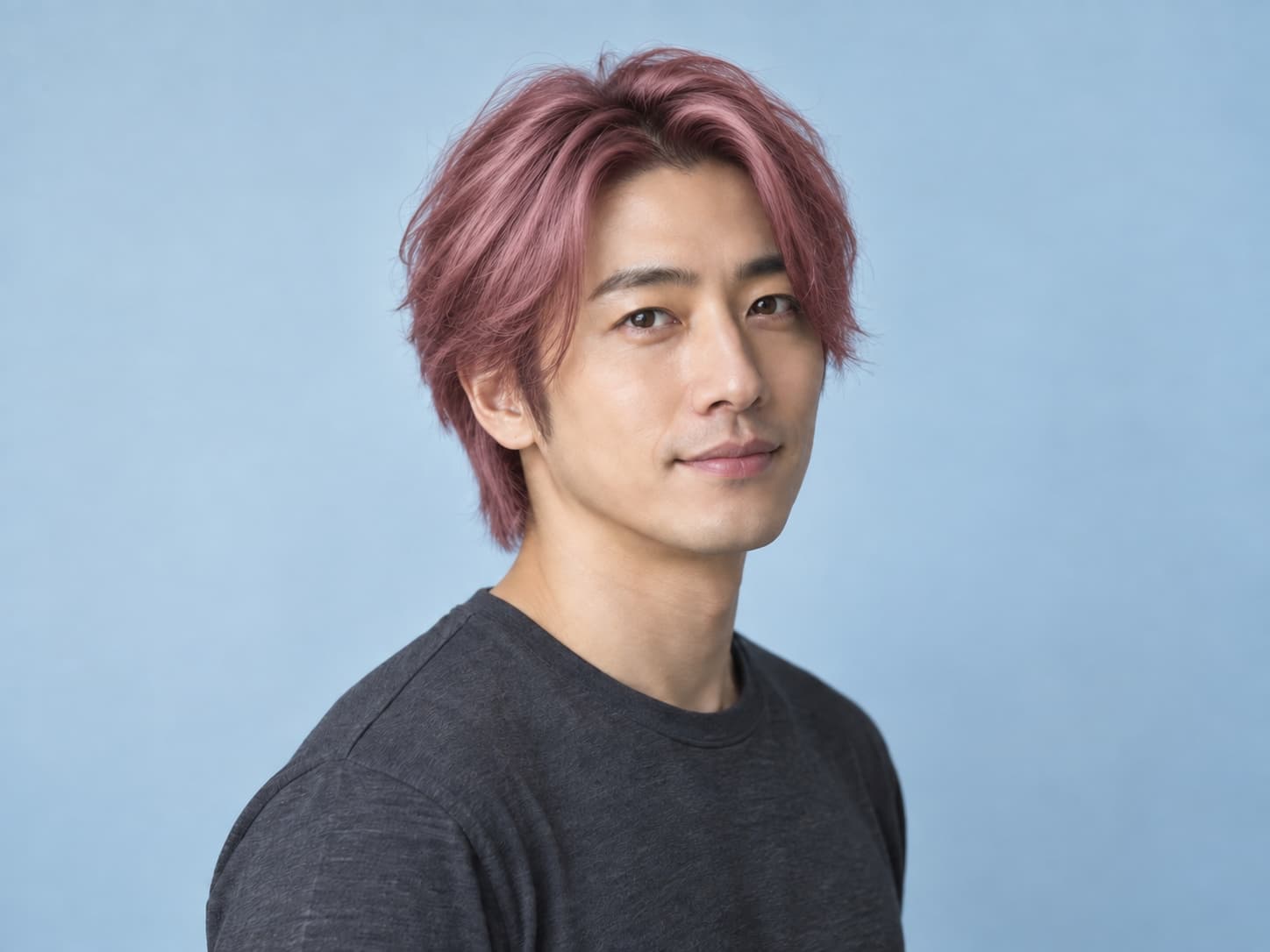
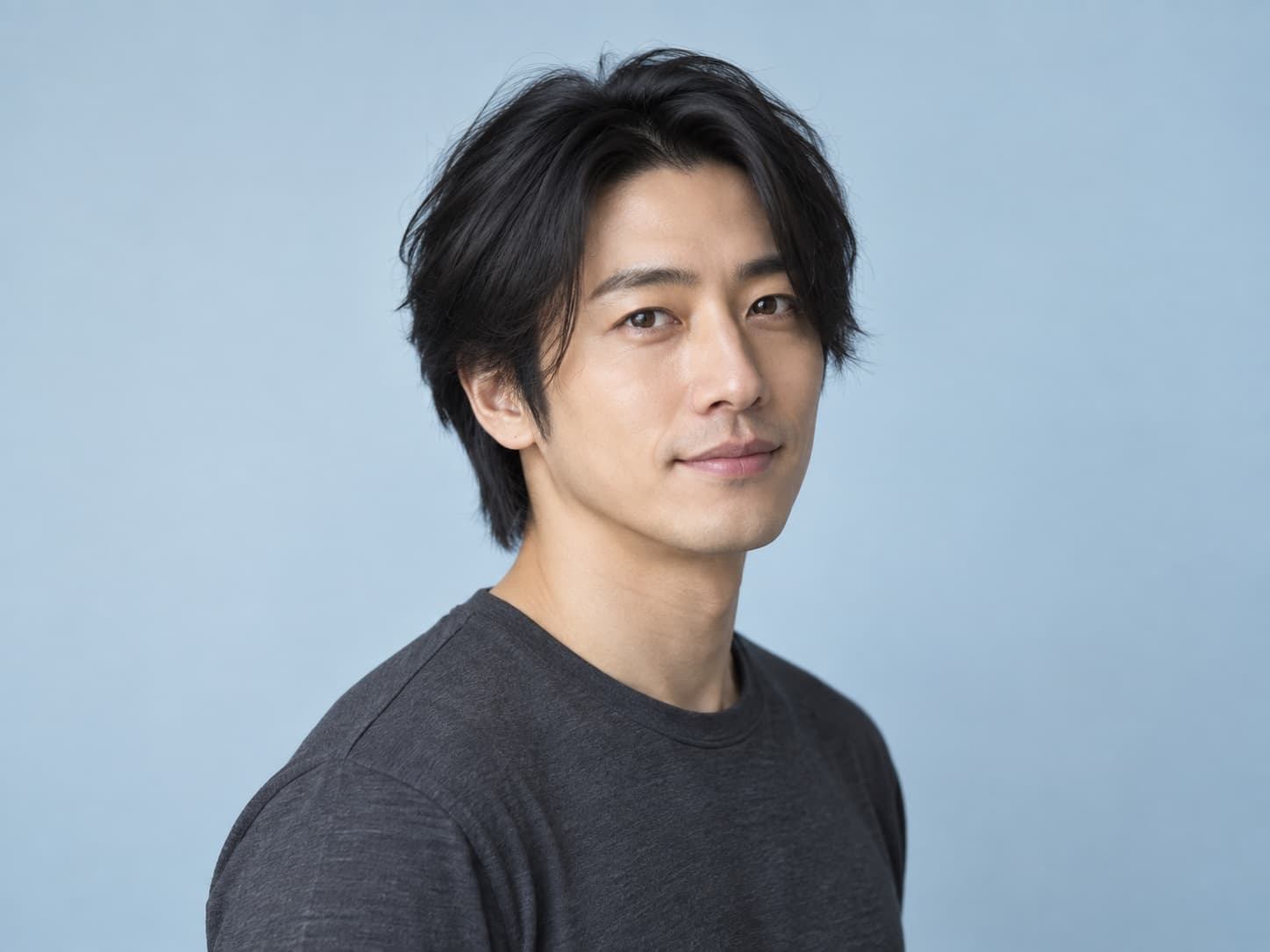
Compare broad color directions such as blonde, auburn or dark brown before deciding what to discuss with a stylist.
Try a silver or rose shade for a profile image or creative portrait while keeping the request limited to hair color.
Use the generated image as a rough visual reference, not as a promise of how dye will look on real hair or under different lighting.
Upload a portrait, choose a preset or describe a color, and open the studio. The request tells the editor to change hair color only. Review the result before downloading.
It is not intended to. The request explicitly keeps hairstyle, length and texture unchanged. Generative edits can still alter fine strands or edges, so compare the result with the original.
Yes. You can describe a shade such as warm chestnut or muted copper. Treat color names and HEX values as guidance rather than an exact measured match.
The request tells the editor to preserve the face and skin tone, but the result is not guaranteed. Check the hairline, eyebrows, skin and lighting before using the image.
Uploading and preparing the request are free. Each generated edit uses credits, and you can review the request in the studio before it is charged.
Use one clear, well-lit portrait with the full hairline and most of the hair visible. Hats, hair covering the face, very dark lighting, multiple people and a background close to the hair color can make the result harder to review.
No. It is a visual preview, not a dye formula or professional color diagnosis. Your starting color, hair condition, lighting and salon process can make the real result different, especially when going from very dark hair to a much lighter shade.
Open the Recolor Agent to request one focused color change for clothing, products, furniture, vehicles or another visible object.